Using JICS on Mobile
JICS Homepage: https://campusweb.livingstone.edu/ICS/
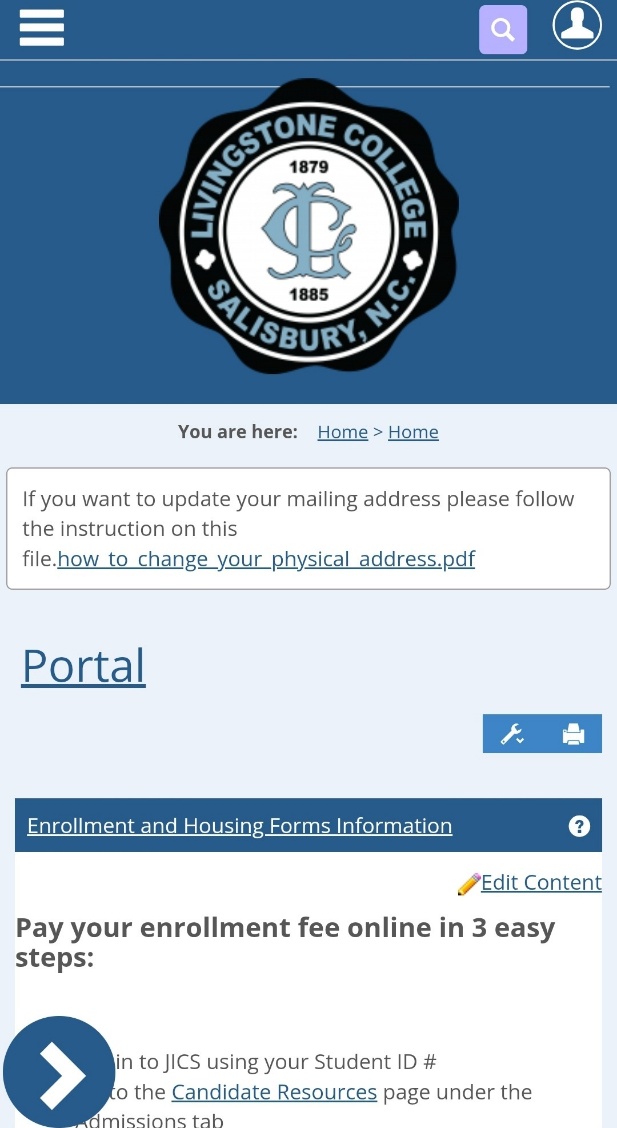
Logging In
Choose Login on the top-right corner of the screen. Once you are logged in you will see an icon instead of the Login button on top of your screen.
NOTE: Your student ID # is your username on JICS
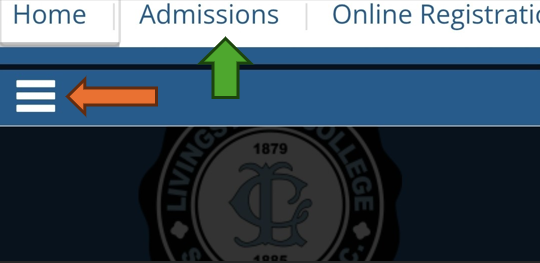
Access the Main Menu
Tap the hamburger menu (☰) in the upper-left corner of the screen. The main menu will appear on top of the screen and scroll horizontally.
This menu provides access to the major sections of JICS, such as:
- Home
- Admissions
- Academics
- Student Life
- Online Registration
- Other institution-specific areas
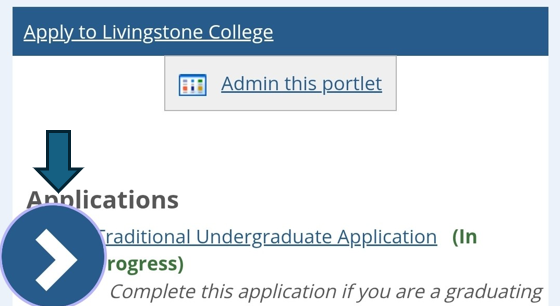
Open the Sidebar Menu
Many JICS pages contain additional navigation options in a sidebar that may be hidden on mobile devices.
Look for the arrow (>) icon near the lower-left portion of the page and tap it to display the sidebar menu.
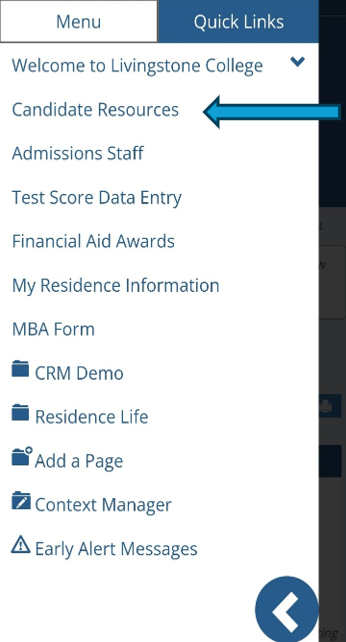
Navigate Within a Section
Once the sidebar is open, select any available option to navigate within the current area of JICS.
Examples may include:
- Candidate Resources
- Registration
- Course Information
- Student Accounts
The available options will vary depending on your institution and your student status.
Finding Forms and Resources
Many forms, documents, and student resources are located within the sidebar menu of the relevant section.
If you cannot find a form or page:
- Verify you are in the correct section.
- Open the sidebar menu to view additional navigation options.
- Scroll through the page to look for available resources.
- Contact your institution if you believe you should have access to a specific item.